Showing posts with label Java Code. Show all posts

Sunday, September 17, 2017

Maven : How to configure Maven into your Windows Machine

Maven is a powerful tool that is used for projects build and dependency management. 
Let see how you can configure Maven into you Windows machine.

Step1 : Download the Maven binary from you offical site. 


Step2 : Extract the binary and save it in some location.
        Let say c:\users\qahumor\maven

Step3 : Now we have to set Environment Variable for Maven.
        Right-click on My Computer ->Properties -> Advanced System Settings.
        Under Advanced Tab -> Click on "Environment Variables".


Step4 : Then click on New in System Variables.

Step5: Provide Variable name = M2_Home and Variable value = path where you saved &
       extract the maven binary ,in this case c:\users\qahumor\maven
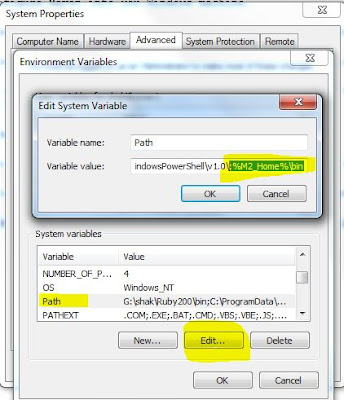
Step6 : Select Path variable in System Variables and click on Edit 
        (be careful while changing anything).

Step7 : Go to the end and enter value like - ;%M2_Home%\bin
        (make sure to put semi-colon incase if its not present) and hit OK.

Step8 : To check whether Maven is configured properly.
        Open command prompt and type these commands

       -> mvn -version  [To see the version of maven into your pc]
				&
       -> mvn clean  [This is command to clean the project , you will see Build Failure ,
                      this is expected as you don't have POM.xml file as of now]
		
Thank you!!

Java : How to read data from properties file

How to read data from properties file


The Properties class represents a persistent or defined set of properties. The Properties can be saved to a stream or loaded from a stream. Each key and its corresponding value in the property list is a string.
Because Properties inherits from Hashtable, the put and putAll methods can be applied to a Properties object.

The Properties file is highly used in automation. Let see with an example.

package com.qahumor;

import java.io.FileInputStream;
import java.io.FileNotFoundException;
import java.util.Properties;

public class Reading_PropertyFile {

 /*
  * @author : Qahumor Reading Properties file in Java
  */

public static void main(String[] args) {

// Create an Object of Properties class.
Properties prop = new Properties();

// Get the path of properties file which you have created in your project.
// System.getProperty("user.dir") - help to read the root directory of your project.
// Change the below path accordingly.
String path = System.getProperty("user.dir") + "/src/config/test.properties";

// Print the path of file for Debug purpose
System.out.println("Debug : Properties file path :" + path);

try {

// Reading the File input stream
 FileInputStream fs = new FileInputStream(path);

// Load the file into memory
 prop.load(fs);
   
} catch (Exception e) {
 e.printStackTrace();
}

// Read the value from Property file - test.properties
System.out.println("\nVersion of the Property file is : " 
    + prop.getProperty("version"));

}

}

Output:

Version of the Property file is : 3.1.4


@@@@@@@@@@@@@@@@@@@@@@@@@@@@@@@@@@@@@@@@@@@@@@@@@@@@@

To create a property file:
1. You can open a notepad
2. Type below content in it.
    version=3.1.4
    login=admin
    pswd=xxxx
3. Save it name "test.properties" in double quotes.
4. You can download the sample property file from Link


Thank you!!


Sunday, December 27, 2015

Appium : Step by step Native IOS App Automation - Part 3(iOS Simulator)

In this Part 3 , we are talking about iOS Simulator command line commands.

How this will be helpful in automation:
This will helpful in checking/verifying your iOS app whether it’s working fine without Appium or any other automation tool in picture. Once you find your app works well then you can go for automation with Appium, this is just to save your time from unnecessary troubleshooting.

Here we start with some useful and important commands

1. To get the list of Simulators available in your system , you can type below command
-> Open Terminal and type below command
                        xcrun instruments -s

2. To launch Simulator using command line , you can type below command and provide same of simulator as you got from step 1 above
-> Open Terminal and type below command
$ xcrun instruments -w "iPhone 6 (9.2)”   // replace with your Simulator name

3. To install app on Simulator using command line once Simulator is up and running, you can type below command
-> Open Terminal and type below command
                        xcrun simctl install booted <app path>
                  e.g xcrun simctl install booted /Users/macuser/Desktop/UIKitCatalog.app

4. To launch an installed app on your simulator , type below command(you can also click/tap the app and launch in simulator using mouse )
-> Open Terminal and type below command
                        xcrun simctl launch booted <app identifier>  

// To get an app identifier or Bundle Identifier you can get it from info.plist file
     e.g xcrun simctl launch booted com.example.apple-samplecode.UIKitCatalog


if you are interested to learn more about all available subcommands you can get by running
          $ xcrun simctl

Hope this helps to get acquainted yourself with basic as well as important iOS simulator commands.click here for Part 2

In Part 4 , we will see the sample demo program of iOS Native App automation using Appium. Stay tuned.


Appium : Step by step Native IOS App Automation - Part 2 (Xcode)


In this Part 2, we are learning about Xcode usage like - building a project, running an application on iOS Simulator.

As you know Xcode is IDE provided for Apple software development. Once you build your project, you can deploy your app on Simulator. 

Now we start with creating a project in Xcode. Since we will be working with Sample IOS Application (UICatalog) which can be downloaded from link provided in Part 1


1. Once you download UICatalog Sample Code, go to the folder and click on UIKitCatalog.xcodeproj


2. It will open in Xcode and looks like this


3.Now on Xcode click on: Product -> Build for -> Testing and you will observe build Succeeded message

4. Again go to Product menu and click on Run, you will see iOS Simulator booting up.
 (Make sure to choose installed simulator on your Mac OS using - Product->Destination->IOS Simulator on Xcode)

5. You can see UIKitCatalog app installed on your iOS Simulator 

If you want to add more devices (iOS simulators), you can go to 

  On Xcode :  Window ->Devices , it will open a Devices Windows


You can go to bottom-left and click on + sign and add your simulator.

Hope this helps, click here for Part 1


Please stay tuned for Part 3, where you will learn running iOS simulator using command line etc.

Sunday, November 29, 2015

Java : Program to check if a given integer number is power of two.

/*
 * @author : P programs
 * Check if a given integer number is power of 2 or not.
 * Exp :8 is a power of 2
 *     :10 is not a power of 2
 *     :32 is a power of 2.
 *
 * To find whether a number is power of 2 or not, we can do a AND operation between number and number-1 ,
 * if AND operation results in 0 then it's a valid power of 2 else its not.
*/

import java.util.*;

public class FindIntegerPowOf2 {

public static void main(String[] args) {

Scanner sc = new Scanner(System.in);
System.out.print("Enter valid Integer number : - ");
int validIntNumber = sc.nextInt();
int result = pow2(validIntNumber);

System.out.println(result);

if (result ==0){
System.out.println("Number is a valid power of 2 ");
}else
{
System.out.println("Number is not a valid power of 2 ");
}


}

public static int pow2(int number){

number = number & (number-1);
return number;

}

}

Sunday, August 16, 2015

Java : Given two unsorted arrays ,write a program to remove duplicates and merge it into sorted order


package com.qahumor;

import java.util.Iterator;
import java.util.TreeSet;

/*@author : qahumor 
 * Given two Unsorted Arrays a1 and a2, 
 * Remove duplicates and merged both into sorted order  
 * 
 */

public class TwoUnsortedArrayMergedAndSorted {

 public static void main(String[] args) {
  
  int[] a1 = {1,2,3,49,6,77,8};
  int[] a2 = {3,67,77,3,10,54};
  int[] a3;
  
  TreeSet<Integer> ts = new TreeSet<Integer>();

  for(int i = 0 ; i < a1.length;i++){
   ts.add(a1[i]);
  }
  
  for(int j = 0 ; j < a2.length ; j++){
   ts.add(a2[j]);
  }
  
  Iterator<Integer> it = ts.iterator();
  a3 = new int[ts.size()];
  int k =0;
  while(it.hasNext()){
   a3[k] = it.next();
   k++;
  }
  
  
  for(int p = 0 ; p < a3.length ; p++){
   System.out.print(a3[p]+",");
  }
 }

}

JAVA : Program to check a given string, if rotated is a palindrome or not

/* * @author : P programs
    * Check if a given string becomes palindrome after rotation or not.
    * Exp : mmo , aaplaaeep , travel
    *
    *We can check for the count of each character in a string , If the total count of 2 chars are equal to                
        1 then the string can't be palindrome.
 */

package pprograms;

import java.util.HashMap;
import java.util.Scanner;


public class CheckStringRotationPalindrome {

public static void main(String[] args) {


Scanner sc = new Scanner(System.in);

System.out.println("Enter a String ");
 
                String str = sc.next();
  HashMap<Character , Integer> hs = new HashMap<Character, Integer>();
int len = str.length();
int count = 0;

for(int i = 0 ; i < len ; i++ ){

if(hs.get(str.charAt(i))!=null){

hs.put(str.charAt(i), hs.get(str.charAt(i))+1);

}else{

hs.put(str.charAt(i), 1);

}
}

for(int i = 0 ; i < len ; i++ ){

if(hs.get(str.charAt(i))==1){
count ++;
if(count == 2){
break;
}
}
}

if(count ==1 ){
System.out.println("String can become palindrome after rotation");
}else{
System.out.println("String can't become palindrome even after rotation");
}
}
}

Sunday, June 7, 2015

Java : Program to find the minimum and maximum number in a given array.


/**
* Find the minimum and maximum number in a given array.
*
* Approach: we can pick an element from array and compare with the min and max value
*
*
*/

public class MinMaxNumber {

public static void main(String[] args) {

int arr[] = {1100,10,3,5,8,1,5,9,23,56,0,90,54};
int min,max;
min=max= arr[0];
for(int i =1 ; i<arr.length;i++){

if (min > arr[i]){ // comparing the number for min value
min= arr[i];
}

if(max < arr[i]){ // comparing the number for max value
max=arr[i];
}
}
System.out.println("Min value = " + min);
System.out.println("Max value = " + max);

}

}

/* output
Min value = 0
Max value = 1100

Tuesday, June 2, 2015

Java : Program to swap two number without using any arithmetic operator


import java.util.Scanner;

/*
*
* Swap two number without using any arithmetic operator like + , - etc
 * we can achieve the solution using the XOR operator
*/


public class SwapTwoNumberWithoutUsingOperator {

public static void main(String[] args) {

Scanner sc = new Scanner(System.in);
System.out.println("Enter number A : ");
int a = sc.nextInt();
System.out.println("Enter number B : ");
int b = sc.nextInt();


System.out.println("Number before swapped A and B respectively --> " + a +" " + b);

a = a^b;
b = a^b;
a = a^b;

System.out.println("Number after swapped A and B respectively --> " + a +" " + b);


}

}

/* output
Enter number A :
10
Enter number B :
30
Number before swapped A and B respectively --> 10 30
Number after swapped A and B respectively --> 30 10

*/

Testing a New Product: Essential Information Software Testers Must Gather in the AI Era

    Learn what information software testers must gather before starting testing a new product, including AI, automation, compatibility, and ...