Showing posts with label Android. Show all posts

Saturday, November 25, 2017

Android : How to get the package name of Android application

How to get the package name of Android application


There are multiple ways in which we can obtain the package name of Android .apk file. 
Here are the some quick ways to get the package name.


Step 1 : If its public app and available in https://play.google.com/store/apps , then search the app name and click on that particular app. you will get the package name as shown in below screenshot.


Demo of Step 1 :


Step 2 : Install the app on your device and run the below command to get the list of packages and search for your app. 
 *(Make sure ADB configured in your path variable, click here to know how to configure adb on Windows , For Mac - you can click here )

-> adb shell pm list packages 


Demo of Step 2 :


Step 3 : Again using the Android command , you can get the details of app , package name

-> aapt dump badging <path of apk> | grep <any_relevant_search_text>

for example :
-> aapt dump badging D:\facebook.app | grep package


   ** aapt stands for Android Asset Packaging Tool .


Demo of Step 3 :


Step 4 : [This step is now obsolete, as Appium UI has changed , if you have OLD Appium setup , you can still use it ] If you have Appium installed and locate the .apk file and it will list the package name as shown in below screenshot.


You can choose any above mentioned steps to get the package name of your app. Some other ways are also present to get the app name.But here i listed few easy way to get the package name. 

If you like this, please subscribe my Youtube channel,like ,comments & share.

Sunday, September 17, 2017

Maven : How to configure Maven into your Windows Machine

Maven is a powerful tool that is used for projects build and dependency management. 
Let see how you can configure Maven into you Windows machine.

Step1 : Download the Maven binary from you offical site. 


Step2 : Extract the binary and save it in some location.
        Let say c:\users\qahumor\maven

Step3 : Now we have to set Environment Variable for Maven.
        Right-click on My Computer ->Properties -> Advanced System Settings.
        Under Advanced Tab -> Click on "Environment Variables".


Step4 : Then click on New in System Variables.

Step5: Provide Variable name = M2_Home and Variable value = path where you saved &
       extract the maven binary ,in this case c:\users\qahumor\maven
Step6 : Select Path variable in System Variables and click on Edit 
        (be careful while changing anything).

Step7 : Go to the end and enter value like - ;%M2_Home%\bin
        (make sure to put semi-colon incase if its not present) and hit OK.

Step8 : To check whether Maven is configured properly.
        Open command prompt and type these commands

       -> mvn -version  [To see the version of maven into your pc]
				&
       -> mvn clean  [This is command to clean the project , you will see Build Failure ,
                      this is expected as you don't have POM.xml file as of now]
		
Thank you!!

Sunday, August 28, 2016

Appium : How to start Appium server using command line

How to start Appium server using command line 


This is very common scenario where you will be needed to trigger/start Appium server either using command line or trigger through .bat file in automation.
I will explain here step by step how to do this and creating a .bat file in the end.

*** You can download batch file from here “appiumserver”(see explanation below)

To do this, please follow the below steps:

 Step 1: Make sure you have Node installed (if not, download it fromlink )  and would be good if
              you configured in your path variable, such that you can run node  from anywhere in your pc
              .It will be helpful in your automation.

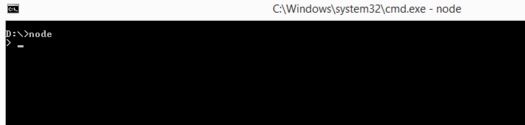
Type node in command prompt, you will see like below screenshot (if it configured properly)
C :\> node        


 Step 2: Make sure you have Appium server is installed.

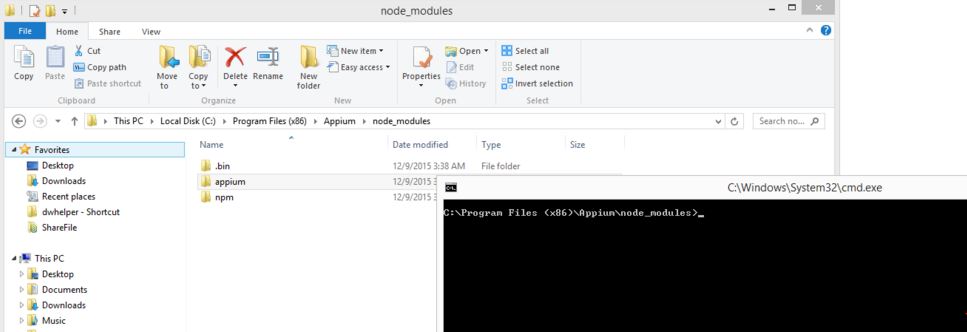
 Step 3: Open Command Prompt and navigate to Appium folder till below path(based on your
              machine ,path may change)
C:\Program Files (x86)\Appium\node_modules


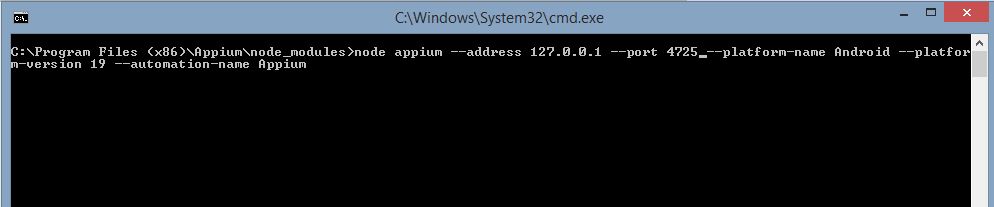
 Step 4: Now run below command, with Appium server argument which you think to be part of it, I
              have passed minimum argument, based on your requirement you can add more.

 -> node appium --address 127.0.0.1 --port 4725 --platform-name Android --platform-version 19 --automation-name Appium


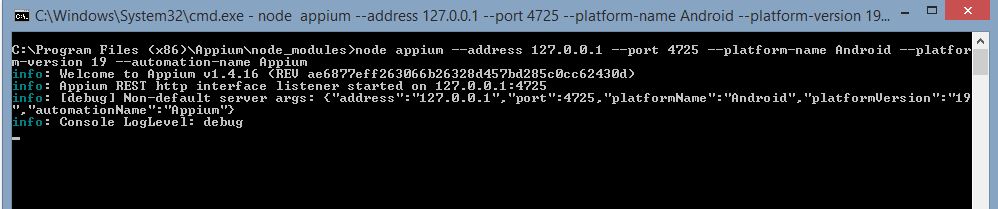
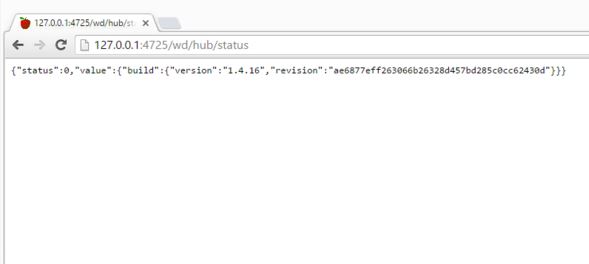
You can see Appium started at port 4725 , 


You can also verify one step ahead by hitting the below URL in your browser
http://127.0.0.1:4725/wd/hub/status 


Step 5:  Creating a batch file, this will make your life little easier in setup and running Appium script.
              Open notepad and paste below code and save it as "appiumserver.bat"
REM ############################################################################ 
REM ## START

echo "navigating to Appium folder"
REM ## change the folder path , based on your machine
cd /D C:/Appium/Appium/node_modules
node appium --address 127.0.0.1 --port 4725 --platform-name Android --platform-version 19 --automation-name Appium

REM ##END
REM############################################################################

You can download it from here “appiumserver

Comment down below for any questions.


Sunday, November 15, 2015

Android : How to change language of device using commandLine

How to change language of device using commandLine


Changing language in Android device on-the fly is needed when we are running or executing automation script in various languages.

To achieve language change of Android device, we have two ways:


You can watch a Youtube video OR follow the step by step procedure below


1> Using adb command 
 Below command can be run from command line , to change the language of device.
   
adb shell "setprop persist.sys.language fr; setprop persist.sys.country CA; 
setprop ctl.restart zygote"

** But this procedure is having one issue, your phone should be ROOTED to make adb command into effect.  

2> Using ADB Change Language APP installed on your device (link)

Steps: 
-
Install this APP on to your device.
-
Setup adb connection to your device (How to do - follow Link )
-
Android OS 4.2 onwards (tip: you can copy the command here and paste it to your command console):
adb shell pm grant net.sanapeli.adbchangelanguage android.permission.CHANGE_CONFIGURATION
- Language change example 1, Brazilian Portuguese:
adb shell am start -n net.sanapeli.adbchangelanguage/.AdbChangeLanguage -e language pt-rBR
- Language change example 2, Canadien French:
adb shell am start -n net.sanapeli.adbchangelanguage/.AdbChangeLanguage -e language fr -e country CA

To make your work easy , create a .bat file

@@@@@@@@@@@@@@@@@@@@@@@@@@
@@@@@@           Create .bat file                  @@@@@@
@@@@@@@@@@@@@@@@@@@@@@@@@@

You can put the change language command in .bat file and can trigger it from your code.
Create a .bat file lets say : "changelang.bat" and paste below 3 line and save it.

cd /D 
adb shell am start -n net.sanapeli.adbchangelanguage/.AdbChangeLanguage -e language %1

exit


That's it.

Sunday, August 2, 2015

Android : How to download .apk file from playstore


Here is the simple procedure to download the .apk file from playstore or from mobile device.

Procedure 1: Downloading from google playstore


Step1 : Browse URL https://play.google.com/store?hl=en
Step2 : Search for your app which you want to download, for example facebook.
Step3 : Select and click on the appropriate facebook app from list available.
Step4 : Copy the URL from address bar as it contains the app package name , see the pic below

Step5: Browse URL http://apps.evozi.com/apk-downloader/
Step6: Paste the copied URL in step4 to textbox as shown below.
Step7: Click on Generate Download link and click on download button as shown with highlighted button in red.

Testing : Key information gathering before you start testing/involving in a new product


I have been testing product from more than 7+ years and seen people specially freshers or test-leads who recently started handling projects facing problem initially in information gathering of product . In IT industry as we all know that teams are spread across the globe who are working on similar project. And getting same/all information's about product at once is a big headache. Most the time meeting happens at a time which does not suits to your timing and you may miss some critical updates /schedule or information or didn't follow your mails because of some or the other reasons. Ultimately you won't be having all the required information's of product at one place as it spreads across your email. So based on my experience and the issue faced , I jotted down some key questions which we can ask to Project Managers or Stake holders or leads(in case of fresher) before we start testing/involving in a product.

1- Ask for product functional specification.

2- What are the new features added to product?(applicable for product having incremental release)

3- Availability of reading stuffs includes any product document ,admin guide ,videos, hands-on docs etc

4- Ask for project milestone which includes CC/FF/SI/RC/RTM date etc.

5- Supported language of the product(if your product supports MUI)

6- Supported platforms of the product i.e. OS(32 or 64 bit )/Browser/Versions/Mobile devices etc

7- Ask for build location , from which branch build should be picked like main branch, staging etc.

8- Is the build available via Testfairy, Jenkins or ask for share location where builds are kept.

9- Which tool is used to maintain the stories of new features like JIRA, AtTask etc , if you are following agile methodologies .

10- What is the target version of product

11- Ask for Upgrade scenario. For example

              11.1- build to build upgrade is supported or not.

              11.2- Upgrade from previous version is supported or not.

              11.3- downgrade to previous version is supported or not.

12- Previous version compatibility is supported or not. If your server version is new , can older version client connects to new server and vice-versa.

13- Area which needs more testing efforts.

14- Ask for bug reporting guidelines if any and you can narrow down to few things/parameters

            14.1- Found in release

            14.2- Target Release

            14.3- Developer contacts

            14.4- Severity guidelines of bug

15- Any 3rd parties software integration required etc

16- Automation scripts is available for this product or can this be automated etc.


These are some points which helps you to get started but I believe there will be many more such questions are present. I would to request you to share your experience in comment sections.

Wednesday, June 17, 2015

Appium : How to get the UDID of Android Device

How to find the UDID of Android Device

What is UDID :

It stands for Unique Device Identifier.
UDID is required during Android application development or Android App automation to get the unique id of the Android device. It is needed in cases when the user wants to track the unique device installations of the application or to send the ADB commands to the device while executing automation scripts.

To find UDID of Android device

You can watch Youtube video or follow the step by step procedure below:


                                                    OR 

Step by step procedure below:

1.
Go to settings for your Mobile device -> About Phone -> Build Number -> Tap 7 times to enable Developer options.

2.
Go to Developer options , under Debugging -> Make sure to enable USB debugging ON.

3.
Now connect your mobile device(using usb cable) to your PC.

4.
Open Command Prompt and type below command
   -> adb devices

*(Make sure ADB configured in your path variable, click here to know how to configure adb)

5.
Note down the UDID of your device.

6.
It will appear as shown in below screenshot


How to get the UDID of Android Device


Thank You!!

Testing a New Product: Essential Information Software Testers Must Gather in the AI Era

    Learn what information software testers must gather before starting testing a new product, including AI, automation, compatibility, and ...